HTML Forms and Inputs – User Interaction

I’m Arjun Saxena, a passionate software developer specializing in web engineering. I believe in writing code that creates real solutions to real problems. I love building efficient, user-friendly applications and constantly push myself to learn new technologies. Beyond coding, I enjoy sharing knowledge and growing together with others in the tech community.
How Websites Take Input from Users (Beginner Friendly Guide)
Every time you log in, sign up, or search on Google, you are using an HTML form.
Forms are the main way users interact with websites.
In this blog, you’ll learn:
How to create forms in HTML
Different HTML input types (text, password, email, etc.)
GET vs POST methods (with real scenarios)
Making forms user-friendly and accessible
All explained in a very easy and practical way.
What Is an HTML Form? 🤔
Simple Definition
An HTML form is a container that collects user data and sends it to a server.
Examples of forms:
Login form
Registration form
Search bar
Contact form
Basic Structure of an HTML Form
Simple Form Example
<form>
  <label>Name:</label>
  <input type="text" />
  <button>Submit</button>
</form>
Main Parts:
<form>→ wraps everything<input>→ takes user input<button>→ submits the form
Creating a Login Form (Real Example) 🔐
<form>
  <label>Email:</label>
  <input type="email" />

  <label>Password:</label>
  <input type="password" />

  <button type="submit">Login</button>
</form>
📌 This is the most common form you’ll see on websites.
HTML Input Types Explained 🧠
From Text to Passwords
HTML gives us different input types for better user experience.
1️⃣ Text Input
<input type="text" placeholder="Enter your name" />
Used for:
Name
City
Username
2️⃣ Email Input 📧
<input type="email" placeholder="Enter your email" />
✔ Automatically checks email format
✔ Shows email keyboard on mobile
3️⃣ Password Input 🔒
<input type="password" />
✔ Hides typed characters
✔ Used for sensitive data
4️⃣ Number Input 🔢
<input type="number" />
Used for:
Age
Quantity
Phone number (sometimes)
5️⃣ Checkbox ☑️
<input type="checkbox" /> I agree to terms
Used for:
Accepting terms
Multiple selections
6️⃣ Radio Button 🔘
<input type="radio" name="gender" /> Male
<input type="radio" name="gender" /> Female
📌 Same name → only one option selectable
7️⃣ Submit Button 🚀
<input type="submit" value="Register" />
or
<button type="submit">Register</button>
GET vs POST – Which Method Should You Use? 🤷♂️
Forms send data using methods.

GET Method 📤
What Happens?
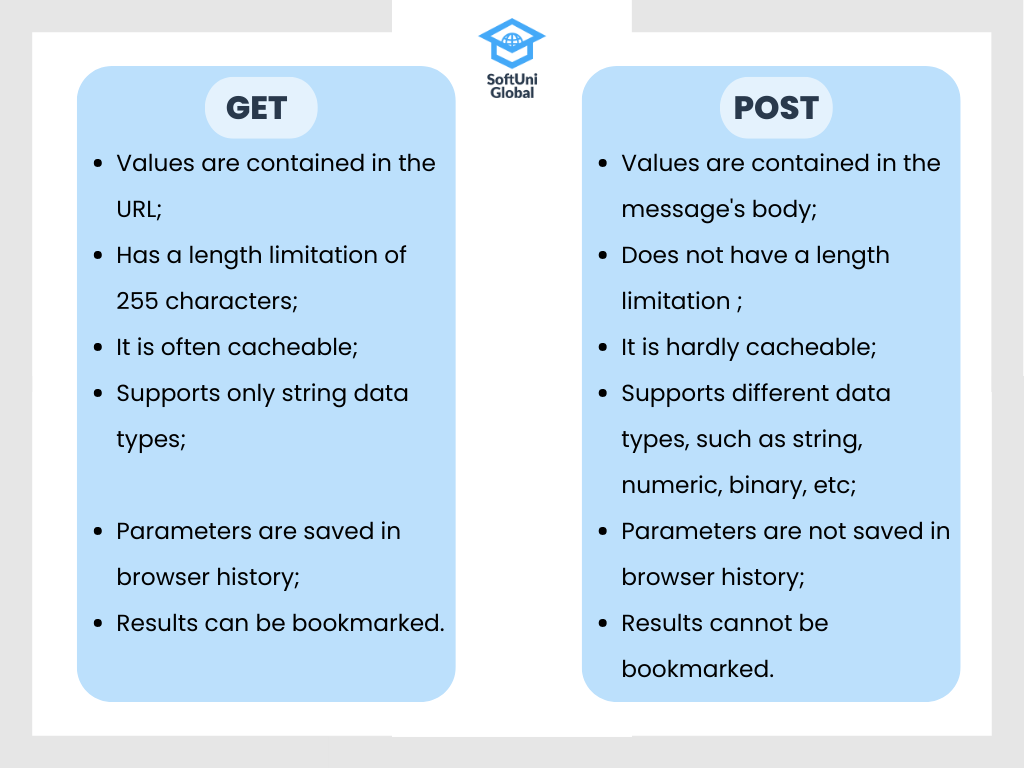
Data is sent via URL
Visible in browser address bar
Example: Search Bar 🔍
<form method="GET">
  <input type="text" name="query" />
  <button>Search</button>
</form>
URL becomes:
/search?query=html
Use GET When:
✔ Searching
✔ Filtering
✔ Data is not sensitive
POST Method 📥
What Happens?
Data is sent inside request body
Not visible in URL
Example: Login Form 🔐
<form method="POST">
  <input type="email" name="email" />
  <input type="password" name="password" />
  <button>Login</button>
</form>
Use POST When:
✔ Passwords
✔ Personal data
✔ Form submissions
GET vs POST (Quick Comparison)
| Feature | GET | POST |
| Data visible in URL | Yes | No |
| Security | Low | Better |
| Used for | Search | Login, Register |
| Data size | Small | Large |
Making Forms User-Friendly & Accessible ♿
Good forms are:
Easy to fill
Hard to misuse
Friendly for everyone
Important HTML Form Attributes ⭐
required – Mandatory Field
<input type="text" required />
✔ Prevents empty submission
placeholder – Hint Text
<input type="email" placeholder="example@gmail.com" />
✔ Guides users
maxlength – Limit Input Length
<input type="text" maxlength="10" />
✔ Prevents extra input
disabled – Disable Input
<input type="text" disabled />
✔ User can’t edit
readonly – Read Only
<input type="text" readonly value="India" />
✔ Visible but not editable
Labels Are Important for Accessibility ♿
<label for="email">Email:</label>
<input id="email" type="email" />
✔ Helps screen readers
✔ Improves usability
Form Submission Flow (Behind the Scenes)
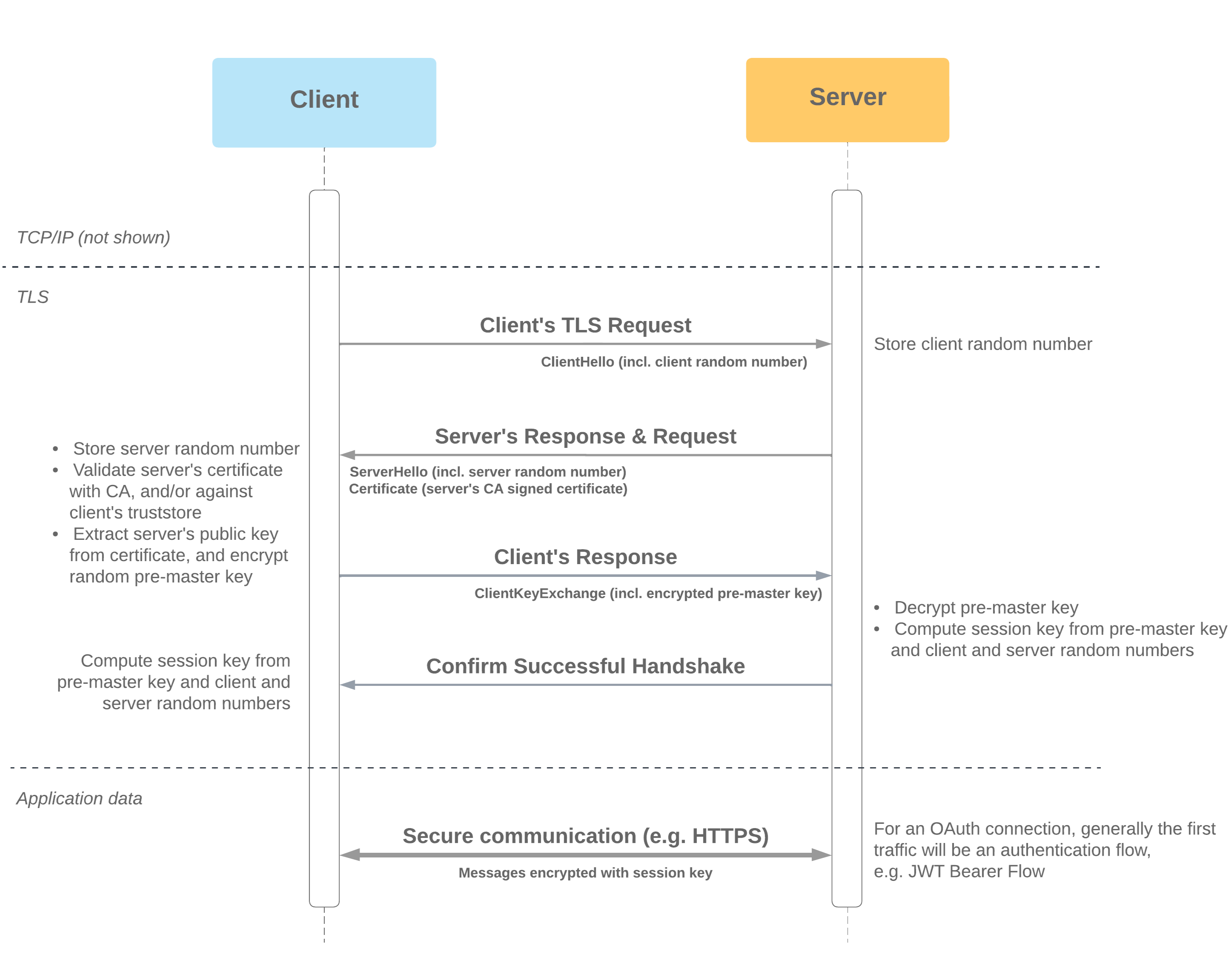
Flow:
User fills form
→ Clicks submit
→ Browser sends data
→ Server processes data
→ Response sent back
Complete Registration Form Example 🧾
<form method="POST">
  <label>Name:</label>
  <input type="text" required />

  <label>Email:</label>
  <input type="email" required />

  <label>Password:</label>
  <input type="password" minlength="6" required />

  <button type="submit">Register</button>
</form>


