Javascript and the DOM - Interacting with the Browser
I’m Arjun Saxena, a passionate software developer specializing in web engineering. I believe in writing code that creates real solutions to real problems. I love building efficient, user-friendly applications and constantly push myself to learn new technologies. Beyond coding, I enjoy sharing knowledge and growing together with others in the tech community.
Interacting with the Browser (Beginner-Friendly Guide)
When you click a button, change text, open a popup, or see content update without reloading the page —
👉 that’s JavaScript working with the DOM.
In this blog, you’ll learn:
What the DOM is (in simple words)
How JavaScript interacts with HTML
How to select and modify elements
How to change styles and content dynamically
How to create and remove elements
Visual understanding of DOM structure
No confusion, no complex terms — step by step clarity.
1️⃣ What is the DOM?
Simple Definition:
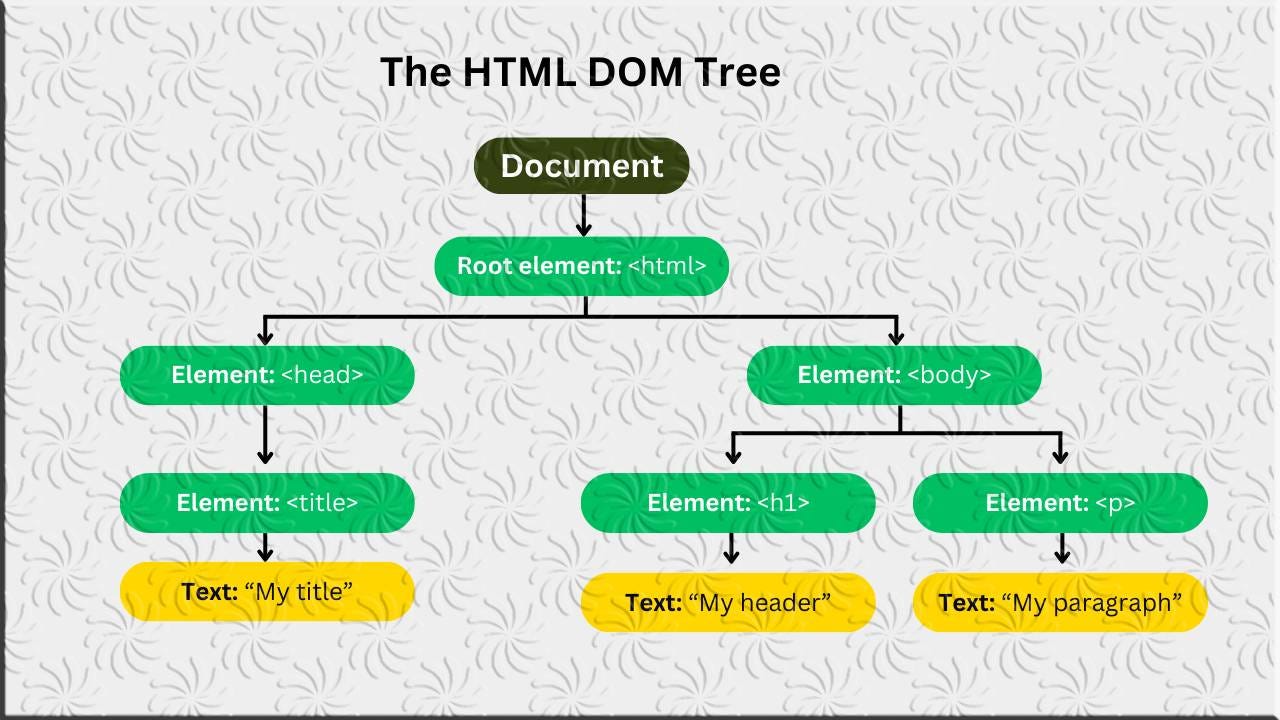
DOM (Document Object Model) is a tree-like representation of your HTML that JavaScript can read and change.
When a browser loads an HTML page:
It converts HTML into a DOM tree
JavaScript uses this tree to interact with the page
Real-Life Example:
Think of a family tree 🌳
Grandparent → Parent → Child
HTML → body → div → p
👉 That’s exactly how the DOM works.
2️⃣ DOM as a Tree Structure
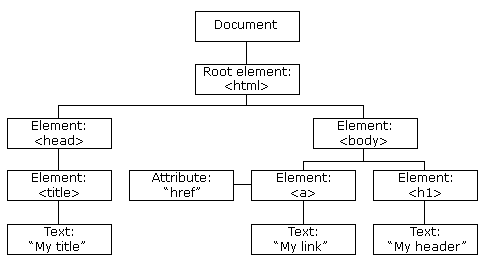
Example HTML:
<body>
  <h1>Hello</h1>
  <p>Welcome</p>
</body>
DOM Tree:
Document
 └── body
     ├── h1
     └── p
✔ Every HTML tag becomes a node
✔ JavaScript can access any node
3️⃣ How JavaScript Interacts with HTML
JavaScript uses the document object to talk to the DOM.
document
👉 This represents the entire webpage.
4️⃣ Selecting HTML Elements (DOM Selection)
Before changing anything, JavaScript must select elements.
4.1 Selecting by ID
<h1 id="title">Hello World</h1>
const heading = document.getElementById("title");
✔ Fast
✔ Used when ID is unique
4.2 Selecting by Class
<p class="text">Paragraph</p>
const para = document.getElementsByClassName("text");
👉 Returns a collection (multiple elements)
4.3 Selecting with querySelector (Most Used)
document.querySelector("h1");
document.querySelector(".text");
document.querySelector("#title");
✔ Very flexible
✔ Modern approach
5️⃣ Modifying Content Dynamically
Changing Text Content
const heading = document.querySelector("h1");
heading.textContent = "Hello JavaScript!";
Changing HTML Content
heading.innerHTML = "<span>Hello DOM</span>";
⚠️ Use carefully (security reasons)
6️⃣ Changing Styles Dynamically with JavaScript
JavaScript can modify CSS directly.
Example: Change Color on Button Click
<button onclick="changeColor()">Change Color</button>
<p id="text">Hello</p>
function changeColor() {
  document.getElementById("text").style.color = "red";
}
✔ No page reload
✔ Instant UI update
Multiple Style Changes
const box = document.querySelector(".box");
box.style.backgroundColor = "blue";
box.style.padding = "20px";
box.style.borderRadius = "8px";
7️⃣ Creating New Elements in the DOM
JavaScript can create HTML elements dynamically.
Example: Create a New Paragraph
const para = document.createElement("p");
para.textContent = "This is a new paragraph";

document.body.appendChild(para);
✔ Useful for:
Adding items
Rendering lists
Showing messages
8️⃣ Removing Elements from the DOM
Example: Remove an Element
const element = document.getElementById("text");
element.remove();
✔ Used for:
Deleting items
Closing modals
Removing notifications
9️⃣ Before & After DOM Manipulation
Before:
Static page
No interaction
After:
Dynamic content
User interaction
Real web app behavior


